Photo groups: organising the photos in a gallery
Képesbolt is constantly evolving, so you may see new settings in the interface that are not yet shown in this video or the images.
Last updated:
Video coming soon
Photo groups let you split a large gallery into smaller, easy-to-browse sets, for example by class, family or location. Your customers find their own photos faster.
Where to find it: Photo galleries → choose the gallery → Manage photo groups
Step by step
- Select the photos in the photo grid.
- Click New group from selected photos. Repeat for each group.
- If you like, ask for a Time-based suggestion without face processing. It suggests groups based on when the photos were taken and doesn't process any faces. Always review the suggestion, because the photo order doesn't prove who is in a photo.
- Fix the groups where needed and set the cover photos.
- Click Save groups.
- Once you've reviewed every group and cover photo, click Reviewed – publish groups. Publishing also turns on the groups button in the customer gallery, so you don't need to save a separate switch.
Saving and publishing are two separate steps. Until you publish, customers can't see the groups.
For person-specific digital packages: a time-based suggestion doesn't prove who is in a photo. If a package gives access to one person's photos, review the group first and save it as a manual group.
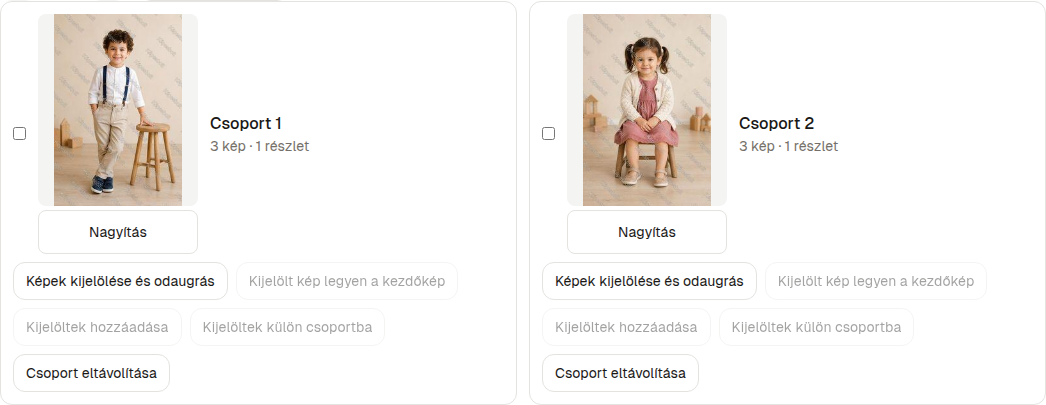
Actions in the photo grid
| Button | What it does |
|---|---|
| New group from selected photos | Turns the selected photos into a new group. |
| Merge selected groups | Combines two or more groups into one. |
| Exclude selected photos | Keeps the selected photos out of every group. |
| Remove exclusion | Lets you assign excluded photos to groups again. |
| Highlight a group's photos | Shows which photos belong to a group. |
| Use selected photo as cover | This photo becomes the group's cover. |
| Add selection | Adds the selected photos to the group. |
| Split selection into a group | Moves the selected photos into a new group of their own. |
| Remove group | Deletes the group; the photos stay. |
| Suggest splitting by fragments | Proposes splitting a large group into smaller ones. |
| Delete grouping results | Deletes all groups and turns the feature off. The photos stay. |
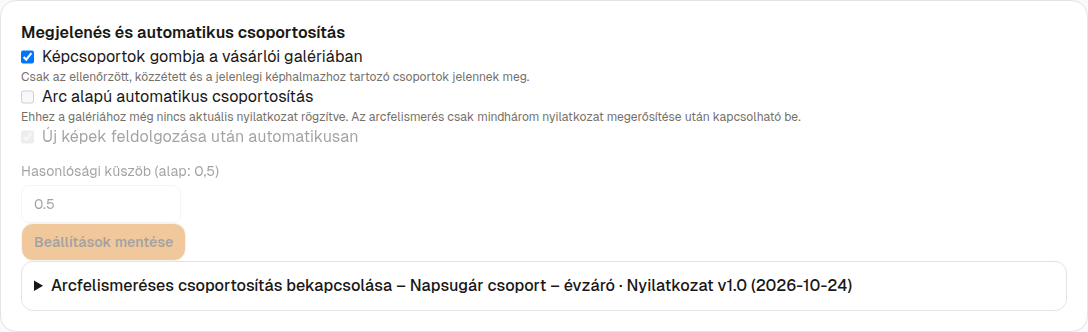
Settings
| Setting | Default | When to change it |
|---|---|---|
| Photo groups button in the customer gallery | Off | Publishing turns it on automatically. Switch it off manually if you'd rather not show the groups. Only reviewed, published groups are shown. |
| Automatic face-assisted grouping | Off | You don't need it for manual grouping. You can only turn it on after confirming all three declarations as the account owner (Confirm all three declarations); then you switch it on and save separately. |
| Automatically after new photos finish processing | On | Turn it off if you don't want face-assisted grouping to rerun on its own after you upload new photos. |
| Similarity threshold | 0.5 | Adjustable between 0.3 and 0.7. Only change it if the suggestions contain many mistakes, and still review the results afterwards. |
Save settings saves only the switches above. To save changes to the groups themselves, use Save groups.
Good to know
- A gallery can hold up to 5,000 photos and 250 groups.
- If you log in as a team member, the view may be read-only. Face recognition settings are reserved for the owner.
- Track a face-assisted run with Refresh status, and stop it with Cancel run.