Storage and Google Drive: where your photos live
Képesbolt is constantly evolving, so you may see new settings in the interface that are not yet shown in this video or the images.
Last updated:
Video coming soon
You can store your photos on Képesbolt's own storage, or keep them on your own Google Drive. This is also where you choose where the files of paid orders should go.
Where to find it: Storage menu
Optional. Your shop works fully without your own Drive: you upload photos to Képesbolt's storage, and download order files with Orders → order → Fulfilment → Download ZIP. Own Google Drive depends on your plan: among the plans you can choose now, Pro includes it.
Important: to use Own Google Drive mode, you first need to connect your own Google account to Képesbolt. You do this yourself, with your own Google account, in your browser.
Step by step
- Under Storage mode, choose where you want to store your photos.
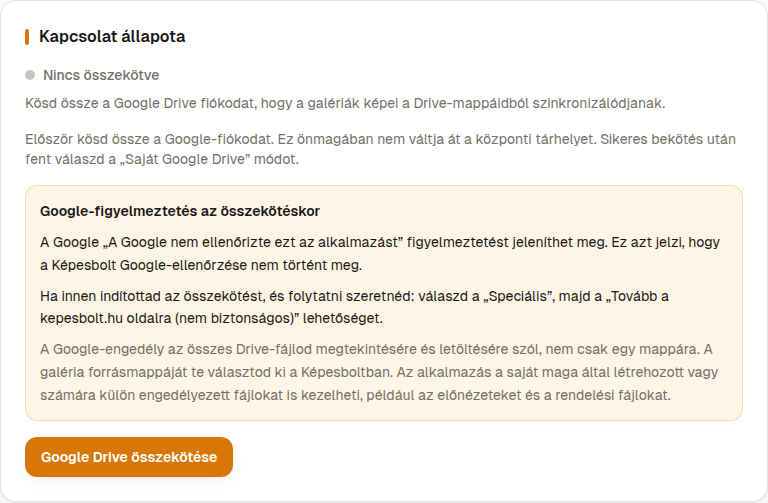
- If you're using your own Drive: click Connect Google Drive and sign in with your Google account.
- Read Google's permission request. With the access you approve, Képesbolt reads the photos in the folder you choose, and creates its own folders for orders, where it saves the production files. It doesn't edit your original photos. You choose which folder it works from later.
- Once connected, select Own Google Drive mode.
- If needed, set the order folder layout and the orders destination folder (see below).
Connecting doesn't switch the mode yet. Switching is a separate step, and the app asks you to confirm first.
Storage mode
| Mode | What it means |
|---|---|
| Central storage (Képesbolt) | Képesbolt stores your uploaded photos. This counts towards your plan's storage limit. Storage usage shows how much you're using. |
| Own Google Drive | Your photos stay on your own Drive. You need a connected Google account and a plan that includes this feature. |
The mode currently in use is marked Active. Only the account owner can switch modes.
Before you switch, keep in mind: switching only applies to new uploads and galleries. Existing photos stay where they are, and they may become unavailable.
Connection to Drive
Connection status shows whether you're Connected or Not connected. Depending on the status, you'll see the Connect Google Drive, Reconnect or Disconnect button.
You pick the folder for a gallery's photos when editing the gallery, using the Browse button. Subfolders are included too.
Order folders
| Setting | Options | What it does |
|---|---|---|
| Order folder layout | Flat (default) or By gallery group and gallery | With Flat, every order goes straight into the destination folder. With the other option, each gallery gets its own branch. Save with Save layout. |
| Global orders folder | a private Drive folder | Only appears when your own Drive is connected. Paid order folders and production files go here, unless the gallery specifies another folder. Save with Save orders folder. |
Changing the layout only affects orders placed afterwards. It doesn't move existing folders.
Connecting Drive doesn't move order folders that already exist either: they stay where they are, and only new orders go to your own Drive.